
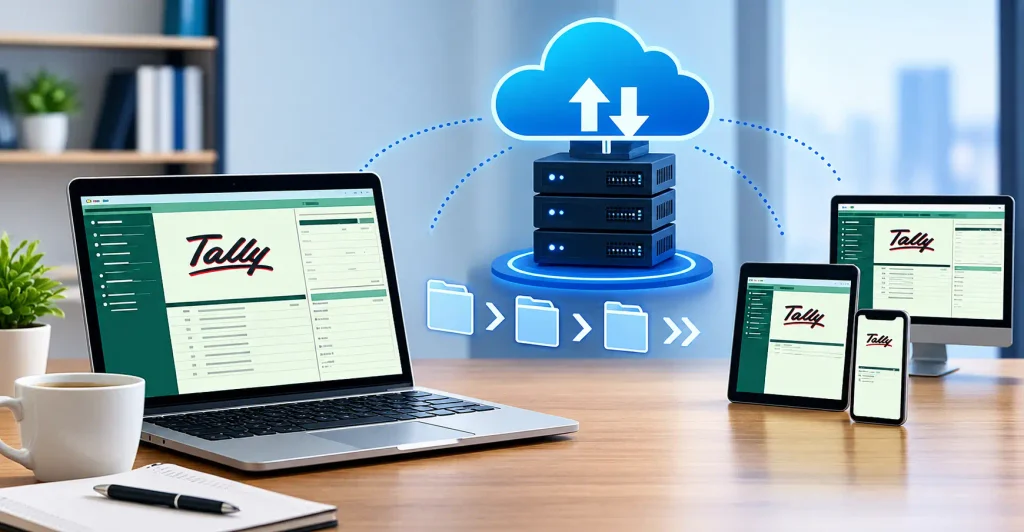
Picture this: it’s the last day of the month, your accountant is travelling, and the only copy of your Tally data sits on a computer back at the office. Nobody can pull a single report until she returns. Situations like this push many business owners to look into a Tally on Cloud Setup. The idea is simple. Instead of running Tally on one local machine, you run it on a secure remote server and log in from anywhere. Your books stay the same; only their location changes. Let’s walk through what the migration actually involves, from start to finish.
What Is a Tally on Cloud Setup?
A Tally on Cloud Setup means running your Tally software on a remote server instead of a local PC. You connect to that server over the internet using a laptop, desktop, tablet, or phone. The software, your company data, and the processing power all live in a secure data center.
You will see this called Tally cloud hosting setup, Tally online setup, or Tally remote access setup. They all describe the same idea. Your accounting software is available wherever you have a stable connection.
It works for both TallyPrime and older Tally ERP 9 installations. Most hosting providers support both versions.
Why Businesses Move Tally to the Cloud
The reasons are usually practical, not fashionable.
- Access from anywhere: Owners, auditors, and staff can log in from any location.
- Automatic backups: Good providers take scheduled backups, so a stolen laptop or a failed hard disk no longer threatens your books.
- Multi-user work: Several people can work on the same company data at once.
- Lower hardware cost: You do not need to maintain a dedicated office server.
- Better security: Data centers offer firewalls, encryption, and monitored access that most small offices cannot match.
- Easier scaling: Adding a user usually takes a few hours, not a hardware purchase.
Take a distribution company with three godowns. Before moving to the cloud, each godown emailed Excel sheets to head office, where one person re-entered everything. After the move, each godown enters its own vouchers directly, and head office sees the same data instantly.
Key Components of a Cloud Setup
Every Tally accounting software on cloud arrangement rests on a few building blocks:
- Cloud server: A virtual machine, usually Windows-based, where Tally is installed.
- Tally license: Your existing license, which must be valid for the way you plan to use it.
- Remote access method: Typically Remote Desktop, a web portal, or a dedicated client app.
- Storage and backup system: Where your company data sits and how often copies are taken.
- User accounts: Separate logins so each person sees only what they should.
- Network and security layer: Firewalls, encryption, and sometimes two-factor authentication.
What Does the Migration Process Involve? Step by Step
This is the core of Tally data migration to cloud. Here is how a clean migration usually unfolds.
Step 1: Assess Your Current Tally Environment
Start by noting your Tally version, license type (single-user or multi-user), number of companies, data size, and any add-ons or TDL files you use. Also count how many people need access. This shapes the server specification you will ask the provider for.
Step 2: Choose the Right Hosting Provider
Look for a provider with real Tally experience, not just generic server hosting. Ask about uptime commitments, backup frequency, support hours, and how they handle data privacy. A provider that knows Tally can fix a data-path or licensing issue in minutes. A generic host may take days.
Step 3: Back Up Your Company Data
Before touching anything, create a full backup. In TallyPrime, you can do this from the Data Management options. Save one copy on an external drive and another somewhere separate. Verify that the backup opens on your current system.
Never skip this step, even if your provider promises to handle everything.
Step 4: Prepare the Cloud Server
Your provider provisions a virtual server and installs the operating system. Then comes the Tally on cloud installation: TallyPrime or Tally ERP 9 is installed, licensing is configured, and required TDLs are added. This is also where the Tally on cloud configuration happens, including data folder paths, user permissions, and printer redirection.
Step 5: Upload Your Company Data
Now the Tally data upload to cloud begins. Your backup or data folder is transferred to the server using a secure method such as encrypted file transfer or a provider-managed upload tool. Large data sets can take longer, so plan this during a quiet period.
Step 6: Restore and Verify the Data
Once uploaded, the data is restored inside Tally on the server. Open each company and check the basics:
- Opening and closing balances
- Ledger counts and stock items
- A few recent vouchers
- Trial balance and balance sheet totals
Compare these against your old system. Everything should match to the rupee.
Step 7: Set Up Users and Access
Create individual logins for each team member. Assign rights based on role, so your sales executive does not see payroll. This step is what turns a basic hosting into a proper Tally multi-user cloud setup.
Step 8: Train Your Team and Go Live
Give staff a short walkthrough on how to log in, save files, print, and log out properly. Run both systems in parallel for a day or two if you can. Then retire the old setup, but keep its backup for a few weeks.
Setting Up Tally Multi-User Cloud Access
Multi-user work deserves a separate look. If several people will enter data at once, you generally need a license that supports multiple users, such as TallyPrime Server for concurrent access. Check your license terms with Tally or your authorized partner before you migrate.
Each user should have a separate login. Shared passwords cause confusion, weaken security, and make audit trails useless. Your provider can also restrict which folders and companies each user can open.
How Long Does the Process Take?
For a single company with a modest data size, many providers finish the Tally company data on cloud setup within a day. Larger setups with several companies, custom TDLs, and many users can take two to five days. Delays usually come from license checks or slow internet during upload, not the server work itself.
Key Mistakes to Watch Out For
Most migration problems are avoidable. Watch out for these:
- Skipping the backup: If something goes wrong, you have nothing to fall back on.
- Choosing the cheapest plan blindly: Low prices often mean shared resources and slow performance.
- Ignoring license rules: Running more users than your license allows can cause errors or compliance trouble.
- Underestimating internet needs: Cloud Tally is only as reliable as your connection at the office.
- Using weak passwords: Accounting data is sensitive. Use strong, unique credentials.
- Not testing before go-live: Always verify balances before you delete anything.
- Forgetting add-ons: Custom reports and TDL files must be moved too, or staff will notice missing features.
Expert Tips and Best Practices
After seeing many migrations, a few habits consistently separate smooth ones from stressful ones.
Migrate at the right time. Avoid month-end, GST filing dates, and the financial year-end. A quiet mid-month window gives you room to fix small surprises.
Ask about backups in writing. Know how often they run, how long they are kept, and how quickly you can restore one.
Keep a local backup too. Cloud backups are reliable, but an occasional offline copy costs nothing and adds peace of mind.
Turn on two-factor authentication if the provider offers it. It blocks most unauthorized login attempts.
Test speed before committing. Many providers offer a trial. Use it with real vouchers, not just a quick login.
Document everything. Save server details, user lists, and support contacts in one place your finance head can find.
A careful Tally on Cloud Setup is less about technology and more about preparation. Businesses that plan the steps above rarely face serious problems.
Everything You Need to Know
1. How do I know if my business is ready for Tally on the cloud?
If your team works from different places, emails data back and forth, or fears losing files, the cloud will likely save you time and effort.
2. Will my custom TDL reports and shortcuts still work on the cloud?
Yes, in most cases. Your provider installs your TDL files on the server, so custom reports and familiar shortcuts work just as they did before.
3. What happens if my internet disconnects while I’m working?
Your session stays alive on the server briefly. Reconnect quickly and you can continue where you stopped, but save your entries often to stay safe.
4. Can my CA or auditor access the data without using my login?
Yes, absolutely. Ask your provider to create a separate login with limited rights, so your auditor sees only the companies and reports they actually need.
5. How often should cloud backups run for Tally data?
Daily backups suit most businesses. If you enter hundreds of vouchers daily, ask for more frequent snapshots so a failure never costs you much work.