
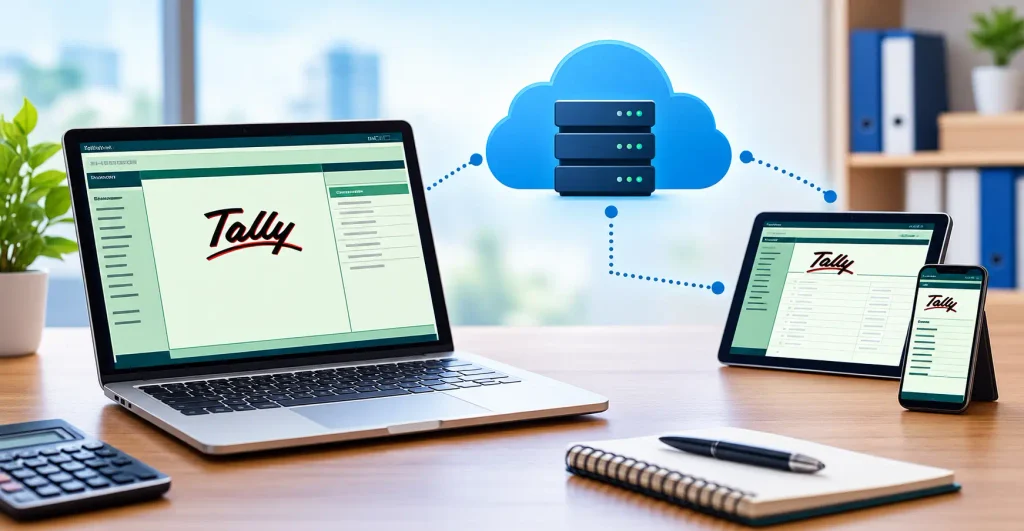
If you have ever been stuck at the office because all your accounting data sits on one desktop, you will understand why learning how to use Tally on Cloud matters. Instead of installing Tally on a single computer, you run it on a secure remote server and open it from your laptop, tablet, or phone, wherever you happen to be. Your data stays safe, your team can work together, and you stop worrying about crashed hard drives or missed deadlines. This guide walks you through the basics in plain language, so even if you have never touched the cloud before, you can get started with confidence.
What Is Tally on Cloud?
Tally on Cloud, also called Tally Cloud or cloud-based Tally, means your Tally software and company data are hosted on a remote server instead of your local computer. You connect to that server through the internet and work as if Tally were installed on your own device.
The software is the same Tally you already know. The difference is where it runs. A hosting provider maintains the server, handles backups, and keeps the system updated. You simply log in and do your accounting.
Think of it like a Google Doc. The file lives online, and you open it wherever you are, instead of emailing versions back and forth.
Why Businesses Are Moving to Cloud Accounting
Cloud accounting for business has become common because it removes several everyday headaches. Here are the main benefits.
Access Tally From Anywhere
With Tally remote access, you can open your books from home, a client’s office, or while traveling. If a supplier calls about an invoice at 9 pm, you can check it in seconds without driving back to the shop.
Multi-User Tally Without the Confusion
On a traditional setup, sharing data between staff usually means copying files or using a messy local network. With multi-user Tally on the cloud, your accountant, sales manager, and owner can work in the same company data at once, with permissions set for each person.
Tally for Multiple Branches
If you have branches in different cities, a cloud setup keeps everyone on one set of books. Head office sees live numbers instead of waiting for month-end files. This is one of the biggest reasons growing businesses choose Tally for multiple branches on the cloud.
Better Tally Data Security
Many owners worry that putting data online is risky. In practice, a good provider is often safer than a single office PC. Look for these protections:
- Encrypted connections
- Automatic daily backups
- Firewalls and antivirus on the server
- User-level access controls
Your data is no longer lost if a laptop is stolen or a hard drive fails.
Tally Remote Access for CA Professionals
Chartered accountants often handle many clients. With Tally remote access for CA work, they can log into a client’s company, check entries, and file returns without visiting the premises or waiting for backup files by email.
Key Features of a Tally Cloud Hosting Service
Not every provider offers the same thing. When comparing a Tally on cloud service, check for:
- Uptime guarantee: Aim for 99.9% or higher.
- Daily backups: Ideally stored in a separate location.
- Multi-user support: The ability to add or remove users easily.
- Device compatibility: Windows, Mac, Android, and iOS access.
- Support: Help that responds quickly, ideally with Tally knowledge.
- Data export: The freedom to take your data back whenever you want.
How to Use Tally on Cloud: Step-by-Step Setup
Here is the process most beginners follow. Details vary slightly between providers, but the flow is similar.
- Choose a provider. Pick a reliable Tally cloud hosting company. Ask about trial periods, support hours, and backup policy.
- Select a plan. Decide how many users you need and how much storage. Start small, since you can upgrade later.
- Receive your login details. The provider will send a server address, username, and password.
- Connect to the server. Use Remote Desktop, a web portal, or the provider’s app, depending on what they offer.
- Open Tally. Once logged in, you will see Tally on a remote desktop. Open it as usual.
- Move your existing data. Copy your company folder to the server or ask the provider to migrate it. Always keep a local backup copy first.
- Add your users. Create separate logins for staff and set their access levels.
- Test everything. Enter a sample voucher, print a report, and check that all users can connect.
Take your time with steps 6 and 8. Most problems come from rushing data migration.
Using Tally GST Accounting on the Cloud
Tally GST accounting works the same way on the cloud as it does on a local machine. You record sales and purchase invoices, tax is calculated automatically, and you can generate GSTR-1 and GSTR-3B reports.
The advantage is timing. Your accountant can reconcile data and prepare returns from anywhere, even when the owner is travelling. For businesses with multiple branches, consolidated GST data is also easier to review.
A practical example: a retailer with three outlets can have each branch enter invoices during the day, while the accountant reviews the combined data at night and prepares the return without collecting files from anyone.
Key Tips for Better Results
After helping businesses set up remote accounting systems, a few habits make the biggest difference:
- Start with a trial. Test speed and support before committing.
- Set user permissions carefully. A data entry operator does not need access to payroll or bank balances.
- Close the session properly. Log off instead of just closing the window, so your session ends cleanly.
- Review access logs. Check who logged in and when, especially if you have many users.
- Train your team. A short walkthrough saves hours of confusion later.
- Plan for growth. Pick a provider that lets you add users or storage without migrating again.
Following these habits will make How to Use Tally on Cloud feel natural within a week or two.
What People Often Ask
1. Can I run Tally on my phone using the cloud?
Yes. Log in through your provider’s app or a remote desktop app on Android or iOS, and Tally opens just as it does on a computer.
2. What happens if my internet stops working while using Tally Cloud?
Your session pauses, but the data stays safe on the server. Reconnect when the internet returns and continue working from where you stopped.
3. Can I switch back to local Tally later if I want?
Yes. Reputable providers let you export your company data anytime, so you can restore it on a regular computer without losing any records.
4. Does moving to cloud Tally change how I enter vouchers?
Not at all. Vouchers, ledgers, reports, and GST features look and work exactly the same. Only the place where Tally runs is different.
5. Is Tally on Cloud worth it for a small business?
Usually, yes. You save on hardware, get automatic backups, and can check accounts from anywhere, which helps even a single-owner shop.