
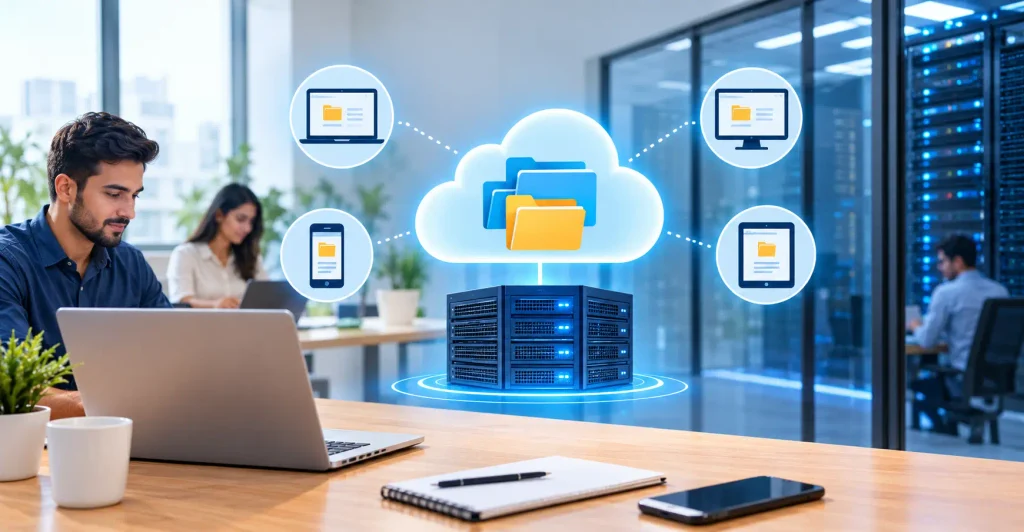
Cloud Based File Server for Small Business: Every small business has a folder problem. Invoices live on one laptop, client contracts sit in someone’s email, and the latest version of the price list is anyone’s guess. A cloud based file server for small business fixes that by putting everything in one secure, always-available place. Your files sit on professionally managed servers inside a data center instead of a dusty box under the front desk. You get access from anywhere, automatic backups, and permissions you control. In this guide, I’ll explain what a cloud file server for small business actually is, why it matters, which features to look for, and how to set one up step by step. By the end, you’ll know exactly what to ask before you commit.
What Is a Cloud-Based File Server?
A cloud file server is a central storage system that lives on remote servers rather than in your office. Your team connects over the internet to open, edit, and share documents, much like using a shared drive at work, only without the hardware to maintain.
Think of it as your old office file server, moved into a professional facility and run by specialists.
How a Cloud Based File Server for Small Business Works
A cloud based file server for small business runs inside a secure facility with backup power, cooling, redundant network connections, and round-the-clock monitoring. The provider looks after the physical machines. You look after your files and decide who can see them. If a drive fails, another takes over, and most of the time you never notice.
Cloud File Server vs. Consumer Storage Apps
Consumer apps are fine for vacation photos. Business use needs more: folder-level permissions, activity logs, central admin control, and compatibility with your existing software.
A virtual file server for small business offers all of that while still feeling familiar. Many providers also offer a Windows cloud file server, so mapped drives and permissions work the way your staff already expect.
Why Small Businesses Are Moving to Cloud File Storage
Picture a five-person bookkeeping firm. Two people work from home, one visits clients, and everyone needs the same spreadsheets. An office server means a VPN headache and a hardware refresh every few years. A cloud setup removes both problems.
Here’s what small business cloud storage solutions typically deliver:
- Remote file access for small businesses: Staff open the same files from home, a client’s office, or a phone.
- Lower upfront costs: You pay a predictable monthly fee instead of buying servers, cooling, and spare parts.
- Built-in backups: Files are copied automatically, so one stolen laptop doesn’t mean lost work.
- Easy scaling: Add storage or users as you grow, without ordering new equipment.
- Less IT burden: Updates and security patches are handled for you.
- Better collaboration: Everyone works from one version, which ends the “final_v3_REAL” file-name chaos.
Because a cloud based file server for small business spreads the cost of expensive infrastructure across many customers, small teams get protection that once only large companies could afford.
Key Features of a Secure Cloud File Server
Not every service is built equally. These are the features that matter most.
Security and Access Control
A secure cloud file server should include:
- Encryption for files in transit and at rest
- Multi-factor authentication
- Role-based permissions, so interns can’t open payroll folders
- Activity logs showing who opened, changed, or deleted files
- Physical security at the data center
Backup and Recovery
Ask how often backups run, how long they’re kept, and how quickly you can restore a deleted folder. Good providers let you roll back to an earlier version, which is a lifesaver after an accidental overwrite or a ransomware scare.
Collaboration and Version History
Cloud file sharing for businesses works best when several people can edit without overwriting each other. Look for version history, file locking, and secure external sharing links that expire.
Compatibility and Performance
Check that the service works with the software you use every day, such as accounting tools, design programs, or industry-specific apps. Test speed with your largest files before signing anything.
Managed vs. Self-Managed Cloud File Servers
With a self-managed server, you rent the space and handle configuration, updates, and troubleshooting yourself. That gives you control but demands technical skill.
A managed cloud file server puts those tasks in the provider’s hands. You get monitoring, patching, backups, and support under one agreement. For businesses without a full-time IT person, managed hosting is usually the safer and less stressful choice.
When comparing cloud file server hosting options, ask where your cloud based file server for small business will be hosted, what certifications the facility holds, and what uptime the provider commits to in writing.
How to Set Up a Cloud Based File Server:
Moving to a cloud server for business documents doesn’t need to be dramatic. Follow this order:
- Audit your current files. Delete duplicates and outdated documents before moving anything.
- Estimate your storage needs. Add 30 to 50 percent for growth over the next few years.
- List your must-haves. Think Windows compatibility, mobile access, and any compliance rules in your industry.
- Shortlist providers. Compare at least three, and request trials where possible.
- Design your folder structure. Keep it simple, such as Clients, Finance, HR, and Operations.
- Set permissions. Give each person access only to what they need.
- Migrate in stages. Move one department first, fix any problems, then continue.
- Train your team. A short walkthrough prevents most “where did my file go?” emails.
- Keep the old system briefly. Retire it only after a couple of weeks of smooth use.
Key Tips for Secure Business File Sharing
A few habits make a big difference:
- Turn on multi-factor authentication for every user, no exceptions.
- Share links instead of attachments, and set expiry dates.
- Review permissions every quarter, especially after staff changes.
- Remove access the same day someone leaves.
- Keep one independent backup copy somewhere other than your main provider.
- Write a one-page file naming and storage policy, and actually share it.
People Also Ask
1. What is a cloud file server for small business?
It’s a centralized storage system hosted online instead of in your office. Employees open, edit, and share documents over the internet, while permissions control who sees what. It works like a traditional shared drive, but the provider handles hardware, maintenance, and backups, so you avoid buying and babysitting equipment.
2. How much does a cloud file server cost?
Pricing varies by storage size, number of users, and support level. Many small businesses pay a monthly per-user or per-terabyte fee, which replaces a large upfront hardware purchase. Ask about charges for extra storage, data transfer, and backups, because those add-ons can change the total. Request a written quote and compare at least three providers.
3. Is cloud file storage safe for confidential business data?
It can be safer than an office server when set up properly. Look for encryption in transit and at rest, multi-factor authentication, role-based permissions, and activity logs. Reputable providers also run facilities with physical security and monitoring. Your own habits matter too: strong passwords, limited admin accounts, and prompt removal of former employees.
4. Can I use a Windows cloud file server with my current computers?
Yes. A Windows cloud file server supports familiar features such as mapped drives, folder permissions, and Active Directory sign-in, so staff keep working the way they already do. Most setups also work on Mac and mobile devices through apps or secure connections. Confirm compatibility with your accounting or design software before migrating.
5. What is the difference between cloud storage and a cloud file server?
Cloud storage usually means an app that syncs files to the internet. A cloud file server behaves more like a traditional office server, with shared drives, detailed permissions, and centralized administration. Small teams with simple needs may be fine with storage apps, while growing businesses with compliance or software requirements often benefit from a dedicated server.
6. How does remote file access work for small businesses?
Employees sign in through a secure connection, such as a VPN, a web portal, or a sync app. Once authenticated, they see the same folders they would in the office. Changes save centrally, so teammates always open the latest version. Good providers add multi-factor authentication so a stolen password alone cannot unlock files.
7. What is a managed cloud file server?
It’s a file server where the provider handles setup, updates, security patches, monitoring, and backups for you. You focus on using your files rather than maintaining the system. It suits businesses without an in-house IT person, because problems are fixed by specialists, often under a service agreement that defines response times.
8. How long does it take to migrate files to the cloud?
A small business with a few hundred gigabytes can often finish in days, though planning takes longer than copying. Internet speed, file count, and cleanup all affect the schedule. Many teams copy files over a weekend, test access on Monday, and keep the old system as a fallback for a couple of weeks.
9. What happens if my internet connection goes down?
You can’t reach files stored only online until the connection returns. To reduce the risk, choose a provider with offline sync for key folders, keep a backup connection such as a mobile hotspot, and ask about uptime guarantees. Some businesses also keep a local cached copy of active projects.
10. How do I choose the right cloud file server hosting provider?
Start by asking where your cloud based file server for small business will be hosted and which security certifications the facility holds. Then check backup policy, uptime commitments, support hours, and how easily you can scale or export your data. Read the service agreement and ask for a trial. The cheapest option isn’t always best; reliable support is worth paying for.