
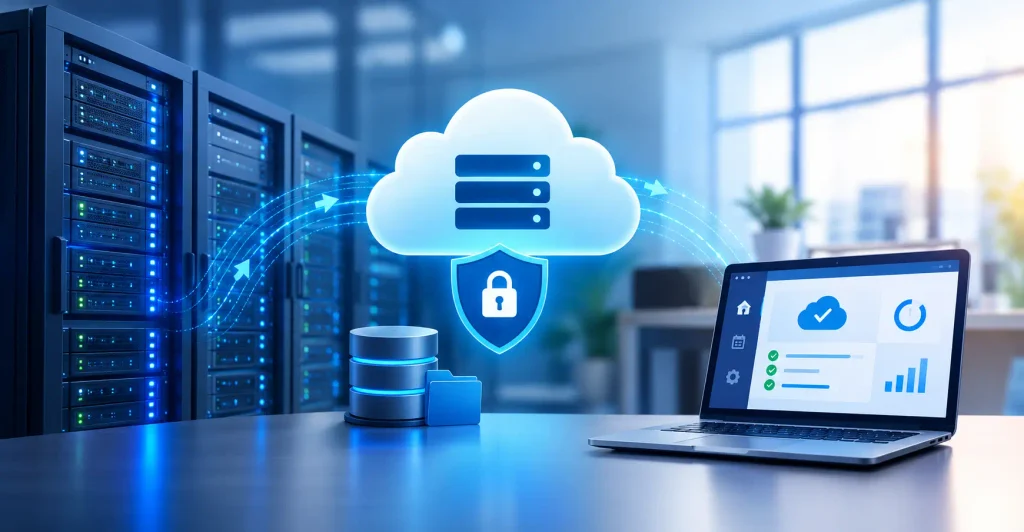
Servers hold the things your business can’t afford to lose: customer records, financial data, application files, email archives. When one fails, work stops. That is why cloud based server backup has become a standard part of IT planning for companies of every size.
Instead of relying on tapes or an external drive sitting in the same room as the server, you copy your data to secure, off-site infrastructure that you can restore from anywhere. This guide explains how it works, what features to look for, and how to set it up properly.
You will also find common mistakes to avoid, practical tips from real-world setups, and answers to the questions business owners ask most. Whether you run one file server or a mixed fleet of machines, you’ll leave with a clear plan.
What Is Cloud Based Server Backup?
Cloud based server backup is the process of copying server data to a remote, internet-connected storage platform run by a provider. Backups happen on a schedule you set, and the copies live far away from your physical hardware.
You may see it called online server backup or remote server backup. The idea is the same: if your server is damaged, stolen, or hit by ransomware, a clean copy of your data exists somewhere else.
A typical setup has three parts:
- A backup agent installed on the server that reads and sends data
- Cloud backup storage where encrypted copies are kept
- A management console where you set schedules, monitor jobs, and start restores
Why Cloud Backup for Businesses Matters
Hardware fails. People delete the wrong folder. Malware encrypts files overnight. A backup stored in the same building as the server is exposed to the same fire, flood, or break-in.
Consider a small accounting firm that keeps client files on one on-site server with a nightly USB backup. A power surge damages both the server and the connected drive. Without an off-site copy, the firm faces days of rebuilding. With a cloud copy, they restore the files to a replacement machine and carry on.
Key Benefits
- Off-site protection: Your data survives local disasters.
- Predictable costs: You pay for the storage you use instead of buying and replacing hardware.
- Automation: Scheduled jobs remove the “someone forgot to swap the drive” problem.
- Scalability: Storage grows as your data grows.
- Faster recovery: Restores can begin from any location with internet access.
- Ransomware resilience: Versioned and immutable copies let you roll back to a clean state.
Key Features of Cloud Server Backup Solutions
Not every provider is equal. When comparing cloud server backup services, check for these essentials:
- Strong encryption: Look for encryption in transit and at rest. This is the foundation of secure cloud backup.
- Incremental backups: After the first full copy, only changed data is sent. This saves bandwidth and time.
- Flexible retention: You should be able to keep daily, weekly, and monthly versions.
- Immutable storage: Backups that cannot be altered or deleted for a set period protect against ransomware.
- Application awareness: Databases such as SQL Server or MySQL need consistent snapshots, not simple file copies.
- Monitoring and alerts: You want to know right away when a job fails.
- Compliance support: If you handle health, financial, or personal data, check for relevant certifications and data location options.
Windows Server Cloud Backup
A good Windows server cloud backup tool should support Volume Shadow Copy Service (VSS), which lets it back up open files and applications without downtime. It should also cover Active Directory, Exchange, SQL Server, and Hyper-V if you use them. Bare-metal restore is a useful extra, since it rebuilds the whole system, not just the files.
Linux Server Cloud Backup
For Linux server cloud backup, look for support for your distribution, command-line control, and scripting options. Many teams back up configuration directories such as /etc, application data, and database dumps. Snapshot support for LVM or file systems like ZFS and Btrfs helps create consistent copies while services keep running.
Cloud Backup and Disaster Recovery: What’s the Difference?
People often mix these up, but they solve different problems.
Backup is a copy of your data. Disaster recovery is the plan and tooling that gets your systems running again after an outage. Strong server disaster recovery solutions build on good backups but add orchestration, such as spinning up virtual machines in the cloud while your main site is down.
Two numbers matter here:
- Recovery Point Objective (RPO): How much data you can afford to lose, measured in time. If you back up every hour, your RPO is roughly one hour.
- Recovery Time Objective (RTO): How long you can afford to be offline.
A law office might tolerate a four-hour RTO. An online store might need minutes. Your answers shape which cloud backup and disaster recovery setup makes sense.
How to Get Started With Cloud Based Server Backup
- Inventory your servers and data. List every server, what it does, and how critical its data is.
- Set RPO and RTO targets. Decide how much loss and downtime each system can handle.
- Choose a provider. Compare features, pricing, data center locations, and support quality.
- Install the backup agent. Do this on each server, starting with the most critical.
- Configure schedules and retention. Run the first full backup, then set incremental jobs. Many businesses use hourly or nightly runs for critical systems.
- Enable encryption and access controls. Use multi-factor authentication on the console and keep your encryption keys safe.
- Test a restore. Recover a few files, then a full server in a test environment.
- Turn on alerts and review reports. Check them weekly.
- Document the process. Write down who does what during a recovery.
Expert Tips and Best Practices
Follow the 3-2-1 rule. Keep three copies of your data, on two different media types, with one copy off-site. The cloud usually fills that last slot.
Protect your backups like production data. Separate credentials, enable multi-factor authentication, and turn on immutability where offered.
Test regularly. Schedule a restore drill every quarter. Time it, and note anything that went wrong. Treat your cloud based server backup like a fire drill, not a set-and-forget tool.
Watch bandwidth. Use throttling or off-hours schedules so backups don’t slow down daily work.
Match the plan to the server. A database server may need hourly backups. A rarely changed archive server may need weekly ones.
Managed Cloud Backup Services vs. DIY
Some teams prefer to run backups themselves. Others hand it off. Managed cloud backup services include setup, monitoring, testing, and support from a third party.
Managed makes sense if you lack in-house IT staff or need help meeting compliance rules. DIY works well if you have skilled administrators who want full control. Either way, a well-built cloud based server backup plan needs the same basics: encryption, testing, clear ownership, and documented recovery steps.
People Also Ask
1. What is cloud based server backup?
It is a method of copying server data to a remote cloud platform on a regular schedule. The copies are encrypted and stored away from your office or data center. If the original server fails or is attacked, you restore the data from the cloud to the same or a new machine.
2. How is cloud backup different from cloud storage?
Cloud storage, like a shared drive, holds files you actively use. Backup keeps versioned, scheduled copies designed for recovery. Deleting a file from storage often deletes it everywhere. A backup system retains older versions so you can roll back after mistakes, corruption, or ransomware.
3. Is online server backup secure?
Yes, when configured well. Choose a provider that encrypts data during transfer and while stored. Add multi-factor authentication, restrict admin access, and keep encryption keys private. Immutable backups add another layer by preventing changes or deletion during a retention window.
4. How often should I back up my servers?
It depends on how much data you can afford to lose. Critical systems such as databases often need hourly or even continuous protection. File servers may be fine with nightly runs. Start by defining your recovery point objective, then match the schedule to it.
5. How long does a restore take?
It varies with data size, internet speed, and the type of restore. A few files can return in minutes. A full server may take hours. Some providers offer local cache appliances or cloud-based recovery to cut the wait. Test your restore times before you need them.
6. Can I back up both Windows and Linux servers?
Most modern platforms support both. Windows tools typically use VSS for consistent snapshots, while Linux agents often work with LVM snapshots or database dumps. Confirm that your specific versions, applications, and file systems are listed as supported before you commit to a provider.
7. How much does cloud backup for businesses cost?
Pricing usually depends on stored data volume, number of servers, retention length, and included services. Some vendors add fees for restores or data transfer. Request a full quote based on your real data size, and ask about egress charges so there are no surprises.
8. Do I still need disaster recovery if I have backups?
Backups protect data, but disaster recovery restores operations. If you need systems back quickly, you also need a plan covering where workloads will run, who leads the response, and how users reconnect. Many providers bundle both, so ask about recovery options.
9. How long should I keep backup versions?
Keep recent versions daily, then thin them out to weekly and monthly copies. Many businesses retain 30 to 90 days of frequent backups plus longer-term archives. Regulations in your industry may require specific periods, so check your legal obligations first.
10. What happens if my internet connection goes down?
Backups pause and usually resume once the connection returns. Your local server keeps running normally. For extra safety, keep a local copy too, following the 3-2-1 rule. If recovery speed matters, ask providers about options that don’t rely only on your own bandwidth.